Using Keyboard Shortcuts
Several optional keyboard shortcuts are provided in FMS Explorer to help you quickly navigate within the application and its control data grids, so that you can perform common actions utilizing keyboard strokes rather than mouse clicks.
The following keyboard shortcuts are applicable within FMS Explorer or its control data grids.
|
Shortcut |
Description |
||
|---|---|---|---|
|
Alt Alt+ |
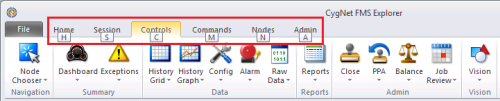
Press Alt to display shortcut keys available for menu navigation.
Press Alt+<menu ribbon shortcut> to access the desired menu ribbon. When accessed via the keyboard shortcut, the ribbon appears and also displays the shortcut keys for accessing each function within the selected menu ribbon.
Use the following shortcut keys to navigate within menu ribbons.
|
||
|
F2 |
Edit mode - When in an editable cell in navigation mode (no edit action), either press F2 or type into the cell to enter Edit mode. |
||
|
Enter |
Advance in column - When editing a cell, press Enter to advance to the next cell in the column, below the current selection. |
||
|
Tab |
Advance in row - When editing a cell, press Tab to move to the next cell in the row, to the right of the current selection. When you reach the end of a row, it will wrap to the next row. |
||
|
Shift+Tab |
Previous cell - When editing a cell, press Shift+Tab to move to the previous cell in the row, to the left of the current selection. When you reach the beginning of a row, it will wrap to the previous row. |
||
|
Ctrl+[=] Ctrl+[+] |
Expand selected - In the Balance, Dashboard, Exceptions, or History Grid controls, press Ctrl+(keyboard)[=] (or Ctrl+(numeric keypad)[+]) while a parent row is selected to expand the area to also show records for its children. |
||
|
Ctrl+[-] |
Collapse selected - In the Balance, Dashboard, Exceptions, or History Grid controls, press Ctrl+(keyboard)[-] (or Ctrl+(numeric keypad)[-]) while any parent or child rows are selected to collapse the area to show records only for the parent. |
||
|
Ctrl+0 (zero) |
Zero flow - In the History Grid control, press Ctrl+0 (zero) while any records are selected to zero out volume and flow values for the selected device record, depending on the device type. See Using Zero Flow for more information. |
||
|
Ctrl+A |
Select all - In the History Grid control, press Ctrl+A while any cell is selected to select all items in the grid. |
||
|
Ctrl+C |
Copy - In the History Grid control, press Ctrl+C while any cells are selected to copy the selected cells. |
||
|
Ctrl+H |
Hourly data - In the Balance control, when "Show daily and monthly rollups only" is selected, and while any cell in a leaf Node row is selected, press Ctrl+H to view hourly data for the selected record. |
||
|
Ctrl+J |
Adjust value - In the History Grid control, press Ctrl+J while any cells are selected to use adjust value in the selected area. |
||
|
Ctrl+L |
Linear fill - In the History Grid control, press Ctrl+L while any cells are selected to use linear fill in the selected area. |
||
|
Ctrl+M |
Mass fill - In the History Grid control, press Ctrl+M while any cells are selected to use mass fill in the selected area. |
||
|
Ctrl+V |
Paste - In the History Grid control, press Ctrl+V while any cells are selected to paste previously copied cells into the selected cells. |
||
|
Ctrl+Shift+E |
Export data to .csv - Press Ctrl+Shift+E while a section of a data grid is selected to export and save the selected contents as a CSV file. |
||
|
Ctrl+Shift+S |
Session Node - Press Ctrl+Shift+S while a Node is selected to designate it as the Session Node. |
||
|
|
Up - Use the arrow buttons to quickly navigate within the cells of a grid. Press the Up Arrow to move the cursor to the next cell above the current selection. |
||
|
|
Down - Use the arrow buttons to quickly navigate within the cells of a grid. Press the Down Arrow to move the cursor to the next cell below the current selection. |
||
|
|
Left - Use the arrow buttons to quickly navigate within the cells of a grid. When not editing a cell, press the Left Arrow to move the cursor to the next cell to the left of the current selection. When editing a cell, press the Left Arrow to do the following.
|
||
|
|
Right - Use the arrow buttons to quickly navigate within the cells of a grid. When not editing a cell, press the Right Arrow to move the cursor to the next cell to the right of the current selection. When editing a cell, press the Right Arrow to do the following.
|